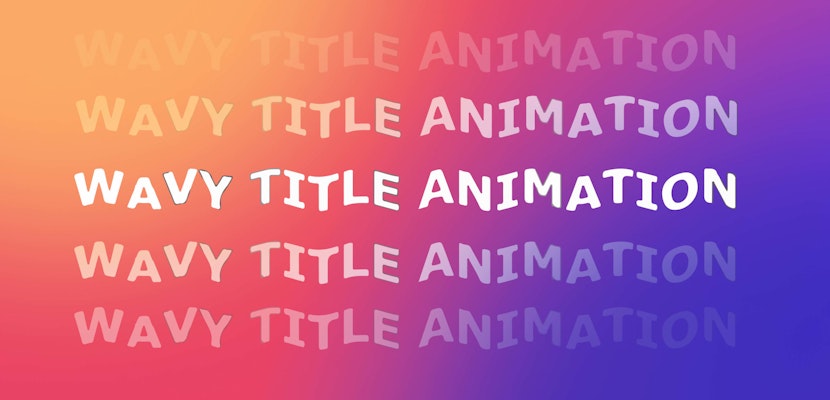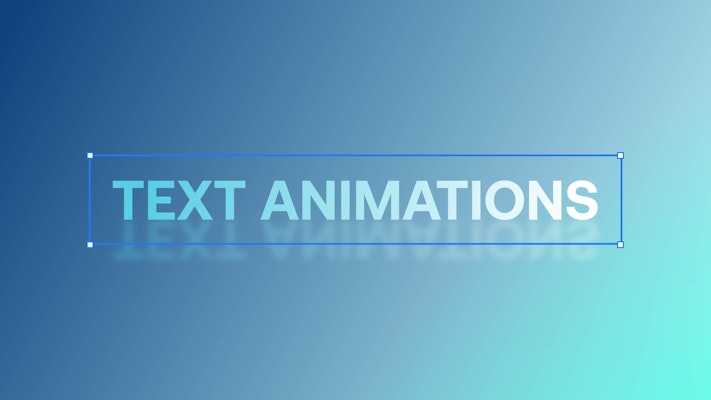
Adding titles to your videos is fun. You can get even more creative once you’ve mastered text animations in After Effects. There are hundreds of ways to create exciting text animations, and you can mix and match them to create fun new looks, too. If you’re fighting creative block, playing around with a new skill could help you break it. In this tutorial, we’ll show you 5 different (and easy) After Effects text animations to add a flourish to your compositions.
Summary
1. Blurry Fade In
Blurry Fade In is a fantastic text animation for slow horror and thriller title sequences or subtle business presentations. This effect randomly flickers each character to full opacity with a blurry flourish.
Blurs of all types are a popular and eye-catching way to add visual interest to your media. Motion Array has other tutorials on blurring titles in After Effects and fun video effects like Zoom Blurs. But before you get going with those, let’s look at how to make a blur text animation in After Effects.
- Create a New Composition named Text Animation 1. Make sure it’s 1920 x 1080 pixels, then click OK.
- Go to Edit > New > Solid, adjust the color to your background preference, and click OK.
- Grab the Text tool and click into the composition to create a new text layer.
- Type your message using the keyboard and adjust the size, weight, and font to your preference.
- In the Layers panel, twirl down the settings using the drop-down arrow.
- Click on the Animate menu and select Opacity.
- Under the Animator settings, change the Opacity to 0%.
- Now, head to the Range Selector, then the Advanced menu.
- Change the Shape to Ramp Up.
- Set the Ease High and Ease Low to 50%, and make sure Randomize Order On is selected.
- At frame 0, set a keyframe for the Offset with a value of -100.
- Move the playhead to frame 45 and change the Offset to 100%.
Top Tip: By using Randomize Order Off instead, you’ll create a Blurry Fade Type On effect instead. Find out more about Type On After Effects text effects below.
2. Animate In from below
The Animate In from below After Effects text effect pulls each character from your title upward into a line. This animation style looks super cool on plain backgrounds, and you can add Position and Mask options as you need to. With these, it will look as if your title is appearing from behind a horizon. It’s a really impactful motion title effect – and here’s how to do it.
- Create a new Composition with a solid background color.
- Type your message in the viewer using the Text tool.
- Twirl the text layer down and, in the Animate menu, select Position.
- In the new Animator, change the Y position value so the text is entirely below where it started (and a little more for safety).
- Twirl down the Range Selector and Advanced menus.
- Change the Shape to Ramp Up and Ease Low to 100%.
- At frame 0, set a keyframe for the Offset with a value of -100%.
- Then, at frame 30, change the Offset value to 100%.
- Draw a rectangular mask around the text with the playhead still at frame 30. Make sure that you don’t leave too much extra room at the bottom.
Top Tip: You can adjust the Position Value so the titles animate from above, too.
3. Tracking and opacity
The tracking and opacity animation style is trendy in movie trailers and title sequences. This slow fade with gentle drift can create dramatic titles without distracting from the background footage. Once you’ve mastered it using the steps below, you’ll find plenty of places to use it.
- Create a new Composition with your background of choice, and type your message using the Text tool.
- Twirl the text layer down and, in the Animate menu, select Opacity.
- In the new Animator, use the add button and select Property > Tracking.
- Change the Tracking Amount to 100.
- Under the Animator settings, change the Opacity to 0%.
- Twirl down the Range Selector and Advanced menus.
- Under Advanced, change Based On to Words.
- At frame 0, under Range Selector, set a keyframe for Start with a value of 0%.
- Then, at frame 60, change the Start value to 100%.
- Right-click on the second keyframe and go to Keyframe Assistant > Easy Ease.
- Right-click on the second keyframe again and select Keyframe Velocity. In the pop-up window, change the incoming influence to 80% and hit OK.
Top Tip: When typing your message, leave enough room on either side so the text doesn’t go off the screen when you add the Tracking Effect.
4. Type On
Type On is a classic text animation for After Effects. It mimics someone typing on a screen and is often used as a fun way to display titles. After Effects does have a Type On preset, but learning to do it from scratch will give you much more control over the speed and style.
- In a new Composition, create a background layer and type your text.
- Twirl the text layer down and, in the Animate menu, select Opacity.
- In the new Animator, change the Opacity value to 0%.
- Twirl down the Range Selector and Advanced menus.
- Under Advanced, change Smoothness to 0%.
- At frame 0, under Range Selector, set a keyframe for Start with a value of 0%.
- Then, at frame 40, change the Start value to 100%.
Top Tip: Adjust the Smoothness setting to create an OpacityType On effect.
5. Animate along a path
Animating along a path is a helpful technique to create near-infinite animation styles. Watching your titles flow perfectly along or around a shape is sure to impress your audience. To achieve the effect, simply do this.
- Create a new Composition with a colored background and add your Title Layer.
- Use the Pen tool to draw a path for the text.
- Twirl down the Layer, the Text menu, and Path options.
- Change the Path to the Mask you just drew with the Pen tool.
- At frame 0, set a keyframe for First Margin. Lower the value to whatever looks suitable for your Path.
- At frame 30, change the First Margin value to 0. This brings the text to the middle of the Path’s length.
- Right-click on this keyframe and go to Keyframe Assistant > Easy Ease.
- Move the playhead to frame 45. Place another keyframe of the same value and make sure it’s eased as well.
- Move to frame 75 and change the First Margin value to a high number to animate it off the screen.
Top Tip: If you want your text to stay on screen following a Closed Path, such as a circle, you’ll need to change the Mask’s mode to None (instead of Add).
Text animations in After Effects are a lot of fun, and there are so many different styles you can use that you’ll never get bored. Now that you know how to create 5 unique After Effects text effects, try mixing the techniques to create a new look. If you found this tutorial helpful, check out our other Premiere Pro tutorials, After Effects tutorials, and filmmaking tutorials!